
If you have a modem, Dentrix can make calling patients easier by showing the patient’s available phone numbers and then dialing the number you choose. Additionally, you can enter notes about the phone call that are automatically added to the Office Journal for the patient. You can also contact patients by e-mail messages and letters.
Note: Telephony must be set up in order to use this feature.
To contact a patient by phone
1. In the Lab Case Manager window, select the patient (for the correct lab case) that you want to contact.
2. Click the More Information button on the toolbar.
The More Information dialog box appears.
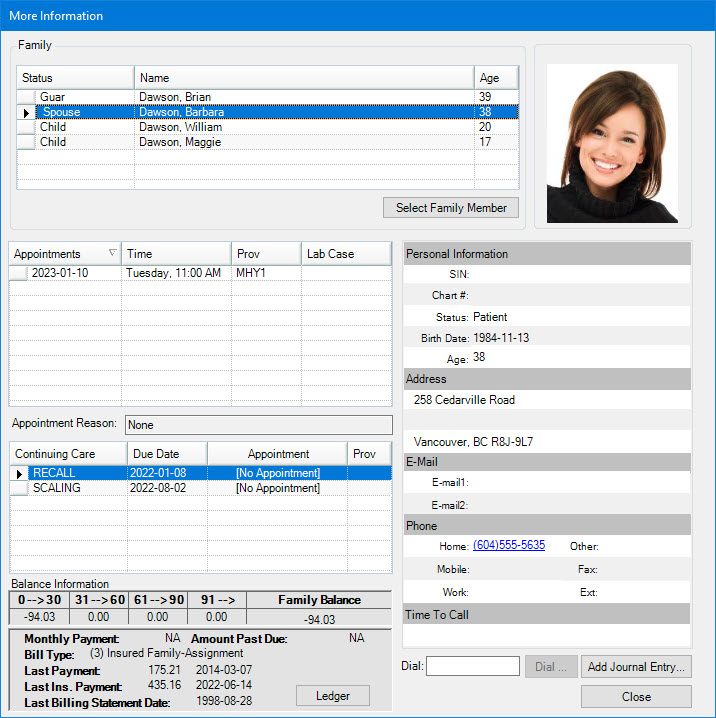
3. Click a phone number link of the number you want to dial.
A message appears instructing you to pick up the handset of the phone.
4. When the patient answers, click Talk.
5. To enter any notes regarding the phone call, click Add Journal Entry in the More Information dialog box.
The Add Journal Entry dialog box appears.
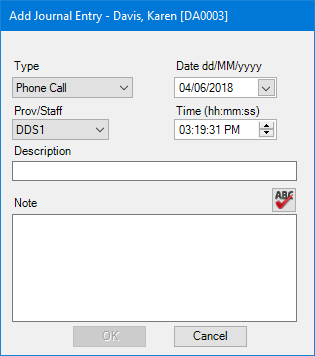
6. In the Note text box, type a note.
7. To perform a spell check of the note text, click the spell check button, and then click OK.
Dentrix adds a phone call entry to the Office Journal for the patient.